Cold Email Sending Windows and Timezones: A Practical Setup Guide
Sending windows decide when your campaigns are allowed to send — and timezones decide what “when” means. This guide walks through SendMatico’s schedule controls and shows practical patterns for reaching prospects during their working hours.
What a sending window is (and isn’t)
A sending window is the set of hours — and days — during which a campaign is allowed to send. When the window is open, scheduled sequence steps can go out; when it’s closed, the campaign waits for the next allowed time instead of sending into the night.
Just as important is what a window isn’t. It isn’t a promise that an email goes out at an exact minute — it defines when sending may happen, not a precise dispatch time. And in SendMatico it isn’t per-recipient scheduling: the schedule belongs to the campaign, and the settings panel notes that these settings apply only to this campaign. One timezone, one window, one set of active days per campaign.
Windows vs daily caps
A window answers “when may this campaign send?” A daily cap answers “how many may it send?” The two work together: the window keeps sends inside your prospects’ working hours, and the cap limits the campaign’s planned daily sending volume. Set both deliberately and review them as a pair.
The scheduling controls in SendMatico
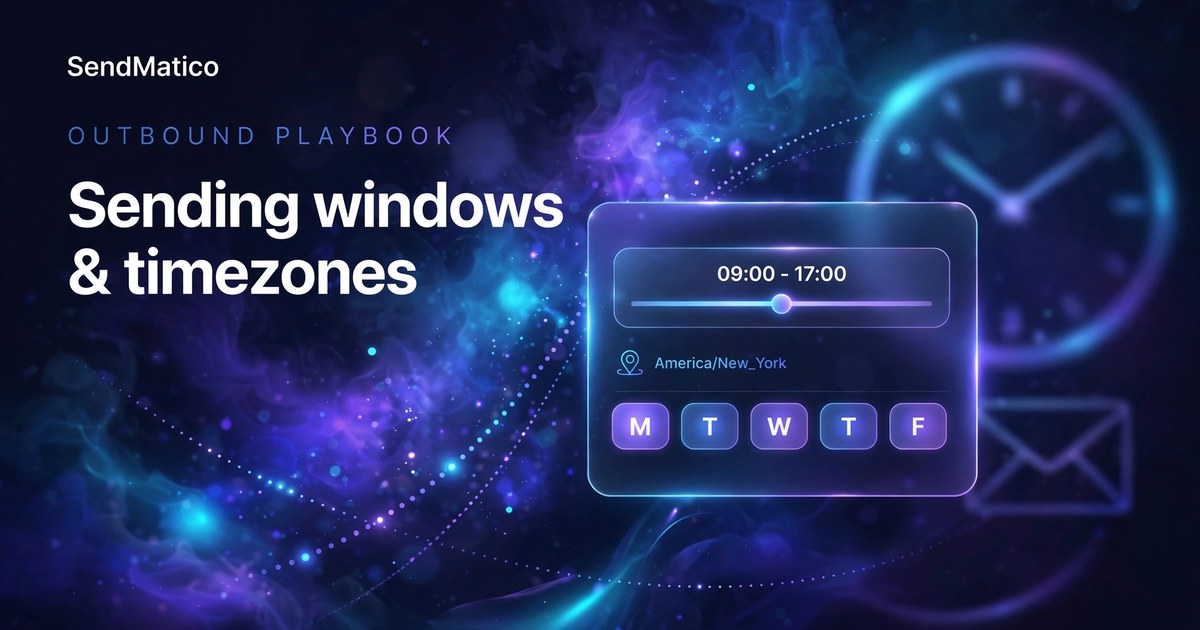
You’ll find the controls in the campaign’s Settings tab, in the Schedule section. There are four of them: a start time and end time that define the day’s window, a timezone dropdown, chips for the active days of the week, and a maximum emails per day field.
Set the timezone to where your prospects work, not necessarily where you sit. The window is evaluated in the campaign’s timezone, so a 09:00 start means 09:00 in the selected zone — regardless of where your team happens to be that day.
Active days default to Monday through Friday. Select at least one intended active day — add weekends if your audience works them, and never leave the selection empty.
The full control set is described on our features page, alongside the rest of the campaign automation tooling.
Choosing a window for your prospects’ geography
One easy scheduling mistake is setting the window in your own timezone while prospecting somewhere else. A 09:00 send from your desk can land at 06:00 for the prospect — buried under everything that arrives before they log on. Think in the recipient’s working hours first, then translate that into the campaign’s timezone setting.
| Prospect base | Campaign timezone | Window | Active days |
|---|---|---|---|
| US East Coast | America/New_York | 09:00–17:00 | Mon–Fri |
| US West Coast | America/Los_Angeles | 09:00–17:00 | Mon–Fri |
| UK | Europe/London | 09:00–17:00 | Mon–Fri |
One campaign per region, or one window for all?
Because the schedule is per campaign, teams prospecting across distant regions often run one campaign per region, each with its own timezone and window. A single campaign forces one timezone on every recipient — workable when prospects cluster in one or two adjacent zones, awkward when they span the globe. There’s no per-recipient timezone adjustment in the schedule controls, so region splits happen at the campaign level.
If you’re already organizing outreach per client, the same split applies naturally: our guide to multi-client outreach covers keeping campaigns, inboxes, and reporting separated per account.
Daily caps, windows, and rotation together
The maximum emails per day field sets a ceiling on the campaign’s sending for the day. It sits alongside the window: the window says when sending may happen, the cap says how much. Review both together whenever you change one — widening a window without touching the cap, or vice versa, changes the shape of your sending day.
Sender limits are a second, shared budget. SendMatico’s sender settings note that sender daily limits are shared across every campaign that uses the same address — so two campaigns drawing on the same senders pull from one pool. Set campaign caps with that shared pool in mind, especially when several campaigns run side by side.
New senders deserve conservative caps while they ramp. That discipline matches the warmup-first approach in our warmup and rotation guide: prove the infrastructure on modest volume before asking a fresh inbox for a full day’s work.
Mistakes to avoid
- Using one window for prospects spread across many timezones without considering whose morning it is.
- Forgetting active days — a weekday window doesn’t help if weekend days are still selected, or vice versa.
- Setting campaign caps while ignoring the shared sender pool those campaigns draw from.
- Copying the same window onto every campaign regardless of region or audience.
- Treating the window as a deliverability fix — windows organize timing; they don’t repair list quality, authentication gaps, or sender reputation.
Sending-window setup checklist
Run through this list each time you configure a campaign’s schedule.
Before you launch
- Timezone matches your prospects’ working hours, not just your own.
- Start and end times define the working day you want — a same-day window.
- Active days reflect when you actually want sends to go out.
- Maximum emails per day is set conservatively for new senders.
- Campaigns sharing sender addresses are planned against one shared daily budget.
- Review sending results periodically and apply what you learn where the schedule supports changes — or carry the lesson into your next campaign’s setup.
Sending windows are a small control that shapes how professional your outreach feels. Set them deliberately, keep them aligned with your prospects’ days, and let the rest of your sequence do its work.
Continue reading
More guides on agency cold email, deliverability, and outreach operations.

Cold Email First Campaign: How to Launch Your First Campaign Without Burning Your Domain
A first cold email campaign is a test, not a launch event. Launch in a deliberate order: set up authentication properly, consider a separate sending domain, start gradually, verify a small list, write a short sequence, set conservative sending settings, run pre-launch checks — and investigate launch-week results before you scale.

Cold Email Inbox Placement: Seed Tests, Postmaster Tools, and How to Find Where Your Mail Lands
Delivered is not the same as placed. Learn how to test cold email inbox placement with seed tests, spam-score checks, and Google Postmaster Tools — and how to read the pattern when mail lands in spam or Promotions.

Cold Email Follow-Up Sequences: Timing, Touch Count, and Stopping Rules
Design cold email follow-up sequences that win replies: how many touches, the 3-7-7 cadence, what each touch should do, stopping rules, and building it in SendMatico.
Ready to run outreach?
Start with free trial credits or book a demo to see SendMatico in your workflow.